

Windows Update plays a crucial role in keeping your operating system up-to-date and secure. However, sometimes automatic updates can become annoying, especially when they occur at inopportune times or consume significant computer resources. In this article, we show you how to permanently disable Windows Update, giving you complete control over your system.
Why would you want to disable Windows Update?
Before taking this step, it is important to understand the risks and benefits.
Advantages:
- Prevents unexpected interruptions while working.
- Saves computer resources (CPU, memory, storage space).
- Avoids automatic installation of incompatible updates or bugs.
Disadvantages:
- Missing security updates.
- Increased vulnerability to cyber attacks.
Recommendation: Disable updates only if you know what you are doing and have alternatives to keep your system secure.

Method 1: Disabling via Windows Services
This is the most popular method to disable updates.
Step 1:
Press the key combination Win + R and type services.msc, then press Enter.
Step 2:
Search in the displayed list for the service called Windows Update.
Step 3:
Right click on it and select Properties.
Step 4:
In the window that appears, at Startup Type, select the option Disabled.
Step 5:
Press OK and Aplicare (Apply) to save the changes.
Note: This method can be reset by major updates, so check the service status periodically.
Method 2: Using the Group Policy Editor
This method only works for Windows Pro, Enterprise, or Education versions.
Step 1:
Press the key combination Win + R and type gpedit.msc, then press Enter.
Step 2:
Navigate to the following location:Computer Configuration -> Administrative Templates -> Windows Components -> Windows Update.

Step 3:
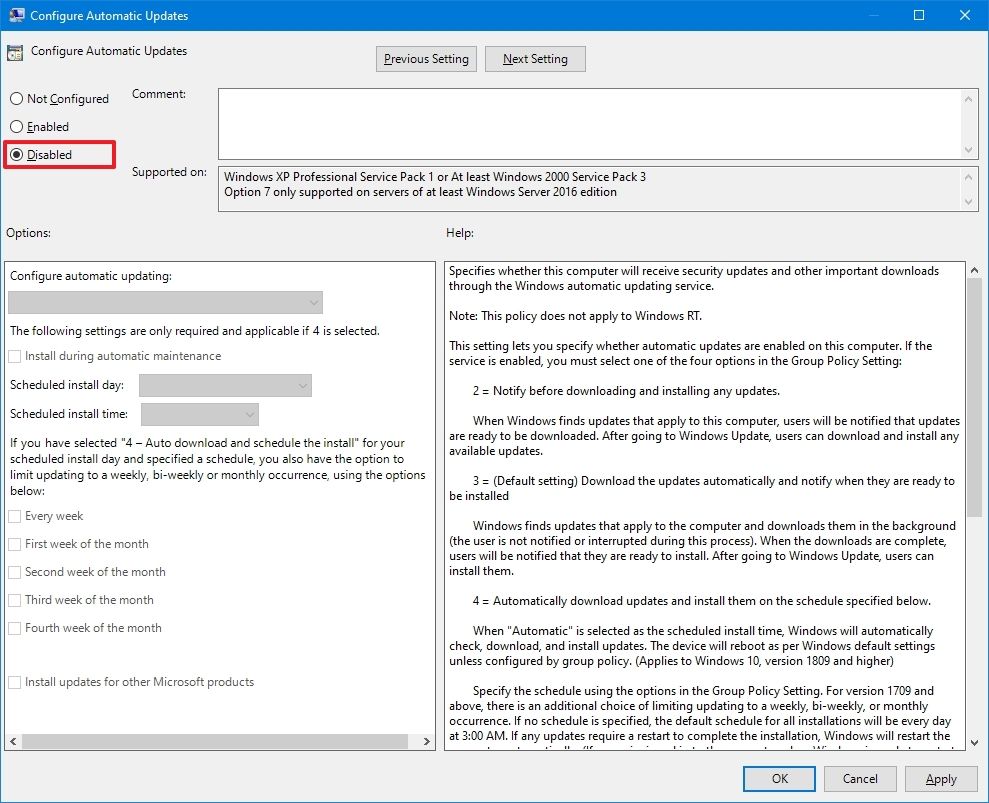
Click on the setting Configure Automatic Updates and select the option Disabled.
Step 4:
Press OK to save the changes.
Method 3: Editing the Windows Registry
This is a more advanced method, so be careful!
Step 1:
Press the key combination Win + R and type regedit, then press Enter.
Step 2:
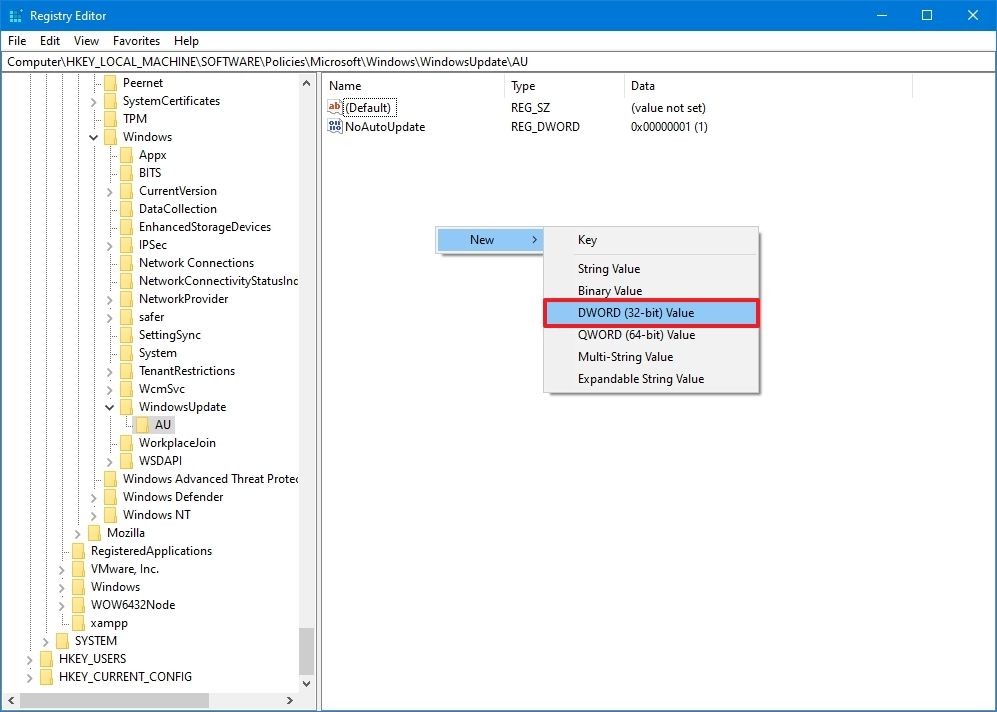
Navigate to the following location:HKEY_LOCAL_MACHINE\SOFTWARE\Policies\Microsoft\Windows\WindowsUpdate\AU.
Step 3:
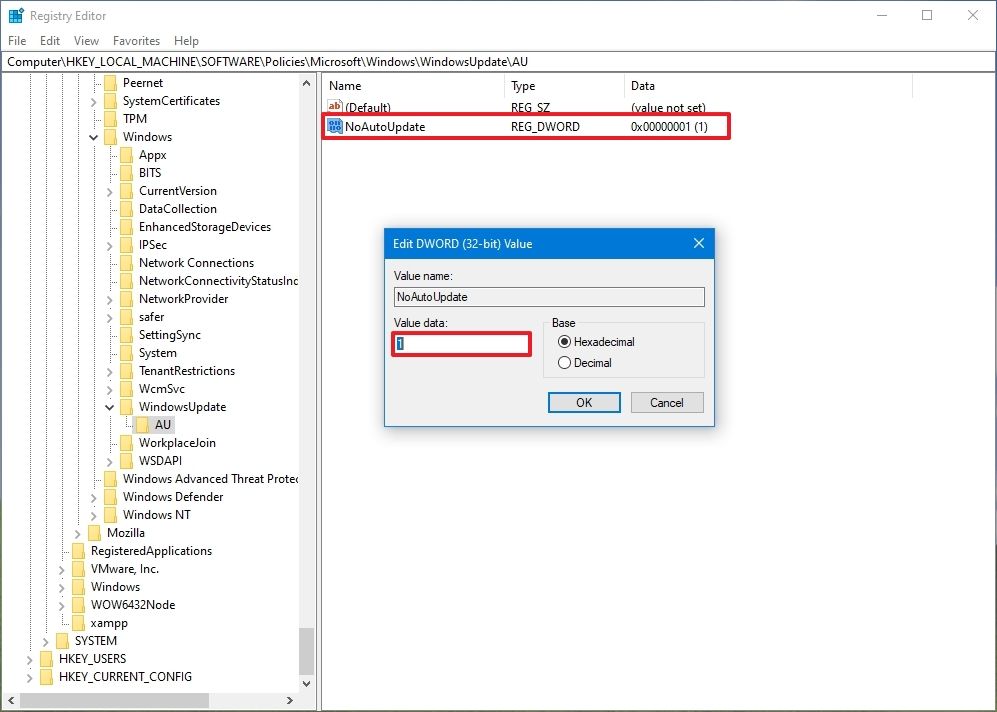
Create a DWORD (32-bit) value named NoAutoUpdate and sets its value to 1.
Step 4:
Restart your computer for the changes to take effect.
Should I permanently disable Windows updates?
Permanently disabling Windows Update can be useful, but it should be done with caution. Following the steps above will give you more control over your system, but don't forget to periodically manually check for important security updates.
Which method do you prefer? Tell us in the comments!
